There may be times when you need to update information for an employee. This could happen when you first add their information during Hire, or later in their employment when you need to update details such as their job, department, pay, or EIN.
Whenever possible, it is recommended that employee changes are submitted through HR Actions. HR Actions provide a single, organized form that gathers the fields relevant to a specific type of change. They also create a reportable paper trail that can be reviewed or audited when needed. In addition, HR Actions support workflows that allow one or more reviewers to approve the changes, which helps maintain HR best practices and internal approval requirements.
If you follow this guide and find that you do not have access to HR Actions, or if you do not see the type of HR Action you need, please contact support@enjoywurk.com for assistance.
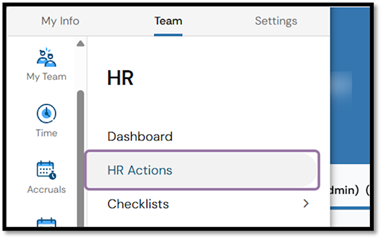
1. Navigate in the Menu to Team>HR>HR Actions
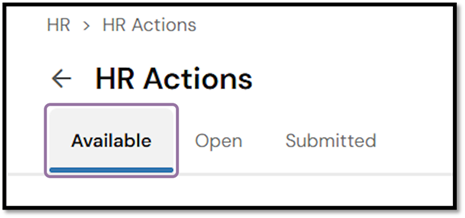
2. Click the Available tab to see all HR Actions you can submit. The Open tab shows any HR Actions you previously started and can return to. The Submitted tab shows all HR Actions you have submitted in the past.
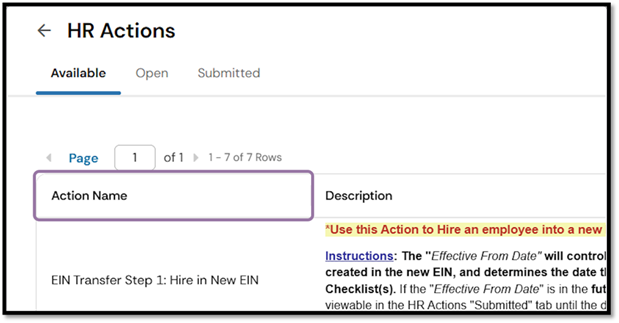
3. In the Action Name column, find the action you want to start.
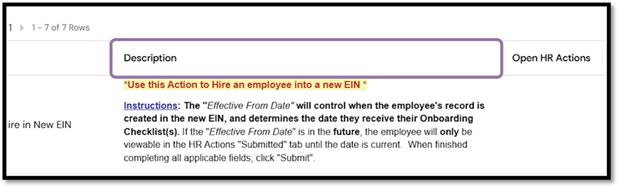
4. Review the Description column to confirm that the selected action matches the request you need to initiate.
5. If you are in the Open HR Actions tab, check for any previously started HR Actions that are saved and ready for you to resume.
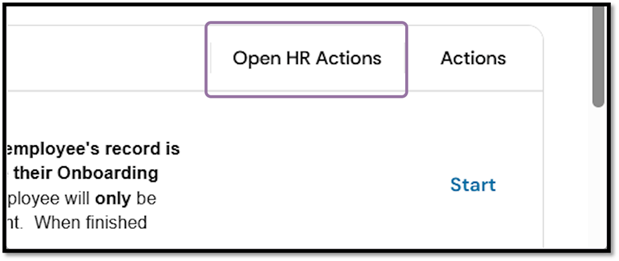
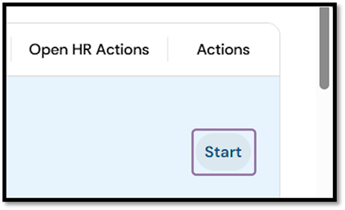
6. Click the Start link in the Actions column to begin the request.
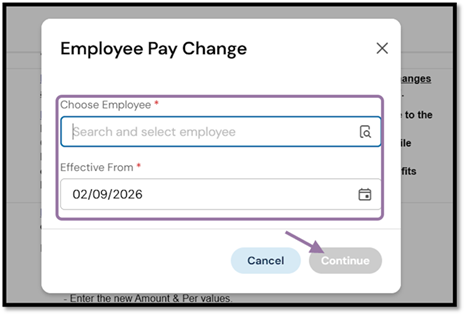
7. Use the Choose Employee field to select the employee, then set an effective date and click Continue.
You can type directly into the field to search or select the Browse icon to open a detailed employee list.
The detailed list can help if multiple employees have similar names, if an employee has multiple records, or if you need to find a terminated employee when processing a Re-Hire.
Keep in mind that future effective dates apply to the employee’s profile but will not appear on the profile until that date arrives. New hires will also remain hidden until their effective date.
If you are hiring or rehiring, you may use today’s date as the effective date and then specify the new hire or rehire date later in the HR Action.
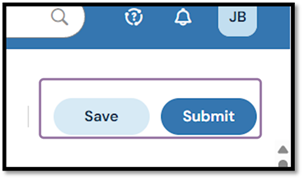
8. Enter all the desired information in the HR Action. Use the Save button regularly to save your progress. If the HR Action contains multiple pages, click Continue to move to the next page. When all required fields are complete, click Submit to finish the action.
ℹ️ After you submit the HR Action, you will receive a confirmation message. Depending on your company’s configuration, the request may be automatically approved and applied, or it may be routed to one or more reviewers who can approve, modify, or reject the request. If you need to confirm how your company’s workflow is configured, contact support@enjoywurk.com.
