As an Administrator, you may need to update information for multiple employees at once. Common examples include:
- Switching or adding cost centers
- Changing or adding assigned managers
- Updating work schedules
- Editing pay settings
- Terminating multiple employees
- Transferring groups of employees to a different EIN
- Changing multiple time entries or punches
- Adding time entries, including time off, for several employees
The mass edit tools under the Settings tab in the main menu allow you to complete these updates quickly and efficiently. This guide walks you through the common ways to Mass Edit various types of information and time entries.
Menu items and on‑screen options may vary depending on your company’s configuration and your Security Profile. If you follow this guide and find that you do not have the access you need, please contact support@enjoywurk.com for assistance.
Mass Edit Profiles
There may be times when you need to apply the same information to multiple employee profiles, such as updating a payroll- or time‑related profile across a group of employees. The Mass Edit Profiles feature in Würk allows you to make these updates quickly and consistently for all selected employees.
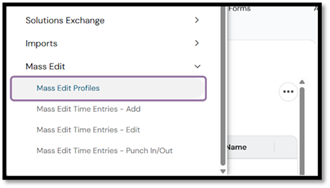
1. Navigate in the Menu to Setting>Mass Edit>Mass Edit Profiles
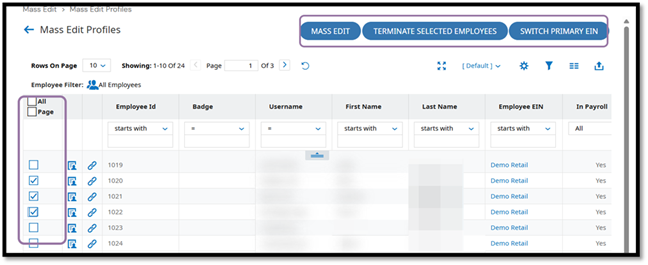
2. Select the employees you want to update. You can choose employees individually, select all employees on the page, or select all records. After selecting the employees, choose the mass edit option you need.
You can use Mass Edit to update profile information, Terminate Selected Employees to process multiple terminations, or Switch Primary EIN to move employees to a different EIN.
Important: You can only switch an employee’s primary EIN if that employee already has a profile in the destination EIN. If the employee does not have a profile in the intended EIN, stop the mass edit process and instead submit an HR Action for an EIN Transfer.
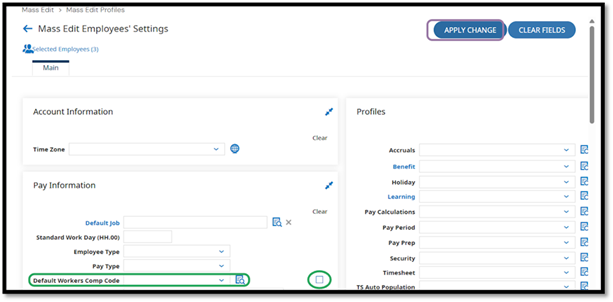
3. Enter the information you want to apply to the selected employee profiles. You can choose to add or update values, or use the Clear button to remove existing data from those fields. When you are ready, click Apply Change to continue.
Before making any edits, it's recommended that you review a few individual employee records so you understand what values you are updating.
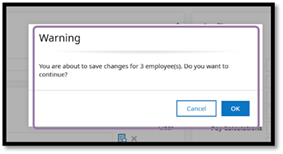
4. A warning message will appear to confirm that you want to apply the change to all selected employees. Click OK to proceed, or click Cancel to return to the editing screen and make additional adjustments.
Mass Edit Time Entries - Add
There may be times when you need to add the same time entry for several employees at once. This is often used for adding time off, such as a company‑wide holiday or an approved group absence. The Mass Edit Time Entries feature in Würk allows you to enter these hours once and apply them to all selected employees, saving time and ensuring consistency across their records.
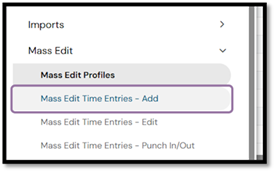
1. Navigate in the Menu to Setting>Mass Edit>Mass Edit Time Entries - Add
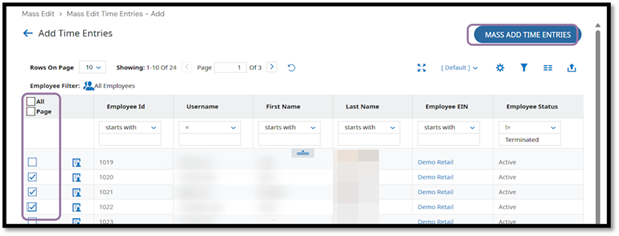
2. Select the employees you want to update. You can choose employees individually, select all employees on the page, or select all records. After selecting the employees, click Mass Add Time Entries
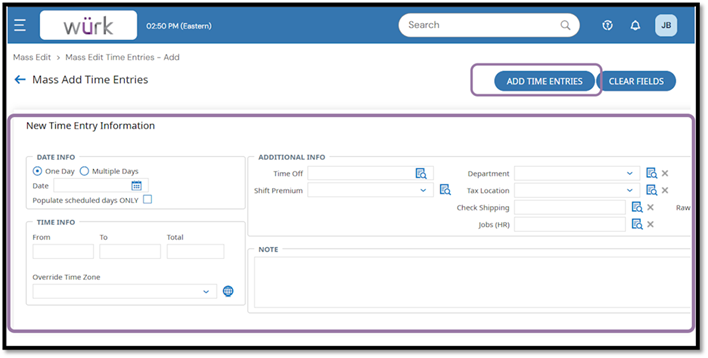
3. Enter the information for the new time entries. After you finish adjusting all fields as needed, click Add Time Entries to apply the updates.
Mass Edit Time Entries - Edit
There may be situations where you need to adjust details for time entries that have already been added to multiple employee records. The Mass Edit Time Entries feature in Würk lets you update these existing entries in one place, ensuring consistency and saving time when the same correction applies to several employees.
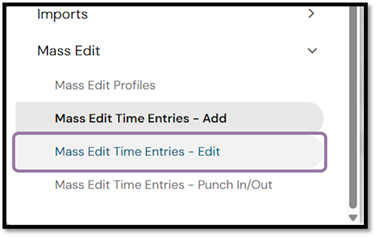
1. Navigate in the Menu to Setting>Mass Edit>Mass Edit Time Entries - Edit
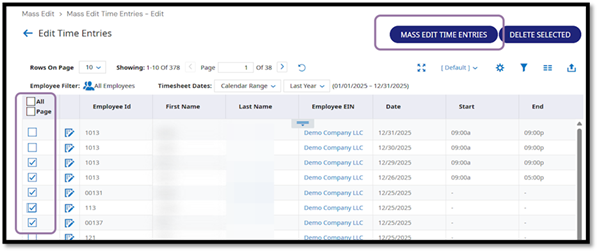
2. Select the employee time entries you want to update. You can choose them individually, select all entries on the page, or select all records. After selecting the entries, click Mass Add Time Entries
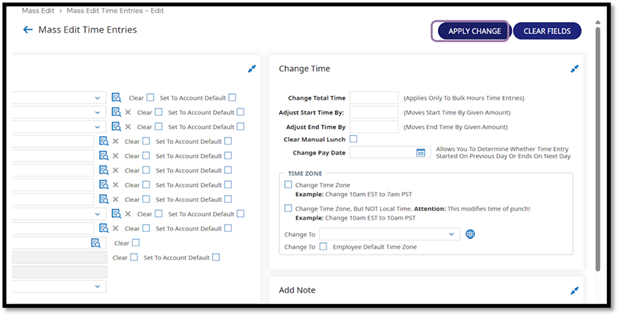
3. Enter the information you want to change for the selected time entries. After you finish adjusting all fields as needed, click Apply Change.
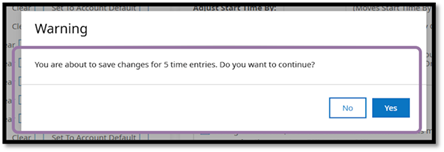
4. A warning message will appear to confirm that you want to apply the change to all selected time entries. Click OK to proceed, or click Cancel to return to the editing screen and make additional adjustments.
Mass Edit Time Entries - Punch In/Out
There may be times when you need to add a punch in or punch out for several employees at once. This is especially helpful if a timeclock was unavailable at the start or end of a shift, or if multiple employees missed their punch for the same reason. The Mass Edit Time Entries feature in Würk allows you to apply these punches in bulk so employee time records remain accurate and complete.
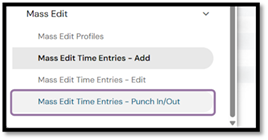
1. Navigate in the Menu to Setting>Mass Edit>Mass Edit Time Entries - Punch In/Out
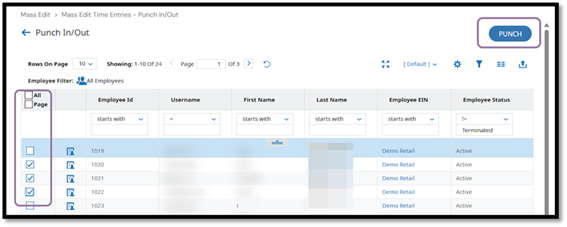
2. Select the employees you want to add punches for. You can choose them individually, select all employees on the page, or select all records. After selecting the employees, click Punch.
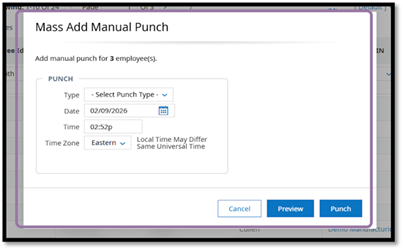
3. Enter the intended values in the pop-up. You can either Preview the results, or click Punch to create the records.